![dmax300.png]](https://kb.dentimax.com/hs-fs/hubfs/dmax300.png?height=40&name=dmax300.png)
Author: Cooper Small
Overview
This article breaks down the different steps in the DrFirst enrollment to help enrolling providers and office staff understand what will be needed of them at each stage. Both the enrolling provider and any office manager assisting with the enrollment should read through this guide before getting started.
The overall timeline is primarily determined by the provider's availability. Several steps — particularly toward the end — must be completed by the provider directly, while other steps can be handled by an authorized office representative. In an ideal situation, the enrollment takes approximately 2 weeks from start to finish, though it can vary.
What We Will Need From You
- The doctor's and office manager's (if involved) cooperation and availability.
- The best contact information (phone number and email address) for the doctor and any other authorized office representative.
The Enrollment Timeline
Step 1 — Enrollment Form Is Sent
Your Implementation Specialist sends the enrollment form via email as a Docusign — one form per provider enrolling in electronic prescriptions. For offices new to DentiMax, this is typically done during the Welcome Call.
📒NOTE
If multiple providers are enrolling together, each provider goes through the entire enrollment process individually — their own form (including their own Page 3 staff/Granting Administrator information), their own token, their own EPCS invite, and their own LAC appointment. They'll all end up listed under the same practice in the DrFirst environment, but nothing about the process itself is shared or combined between them.
The enrollment form is 5 pages. Below, is a breakdown of each page:
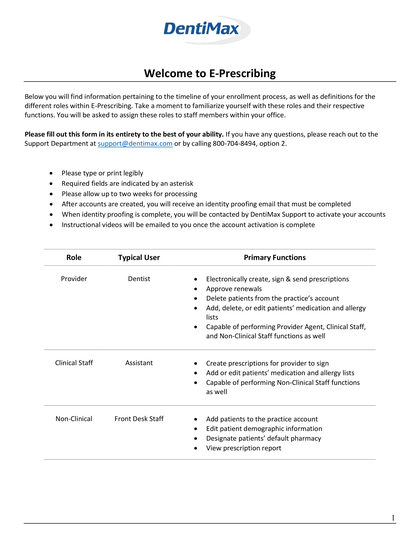
Page 1 — Roles & Welcome Information
Page 1 lists the different roles available in DrFirst and their functions: Provider, Clinical Staff, and Non-Clinical Staff. Review this page carefully so the correct roles are assigned to your team.
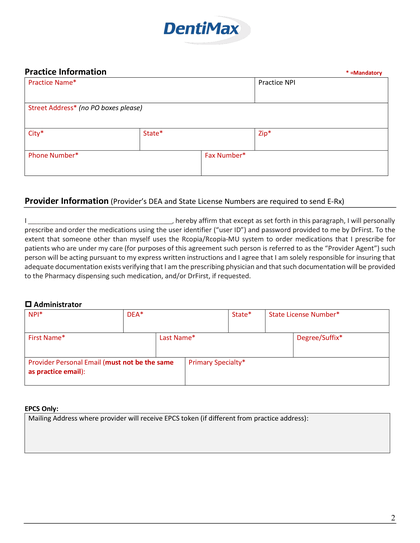
Page 2 — Practice & Provider Information
Page 2 contains fields for Practice Information (office details) and the Administrator / Provider Information section, which includes the provider's NPI, DEA, state license number, and primary specialty.
The Provider Personal Email field must not be a practice email address — it must be the doctor's personal email.
If the mailing address for the EPCS token differs from the practice address, enter it in the "Mailing Address where provider will receive EPCS token" box. Otherwise, leave it blank.
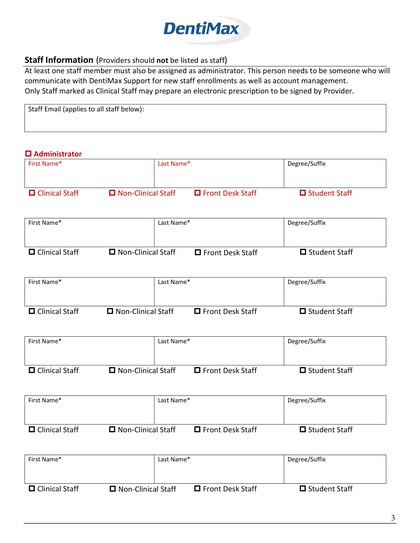
Page 3 — Staff Information
Page 3 is used to list staff member details so our team can create their user accounts. Staff members are not providers and should not be listed as providers.
A single staff email address applies to all staff listed on this page. This email must be different from the provider's personal email. If it is the same, the enrollment cannot proceed until a different address is provided.
The Administrator listed on this page (also called the "Granting Administrator") must be someone in the office who can verify the doctor's identity. This person will be required for the final step of the enrollment — the LAC (Logical Access Control). The enrollment form allows for one Granting Administrator to be designated, though the office can have additional Granting Administrators identified in their DrFirst practice over time. If you need to change or update your Granting Administrator, contact us at Implementations@DentiMax.com.
📒NOTE
The doctor must have someone else listed as Granting Administrator — it cannot be the doctor themselves. Ideally this is someone in the office, but if there's no other office staff available, it can be someone the doctor knows personally (a family member, colleague, etc.) who is able to confirm the doctor's identity.
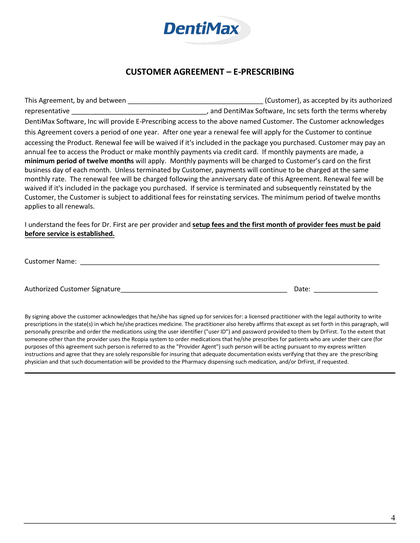
Page 4 — Customer Agreement
Page 4 is the Customer Agreement, which must be signed by the provider or an authorized office representative to complete the Docusign enrollment form. Read this page carefully before signing.
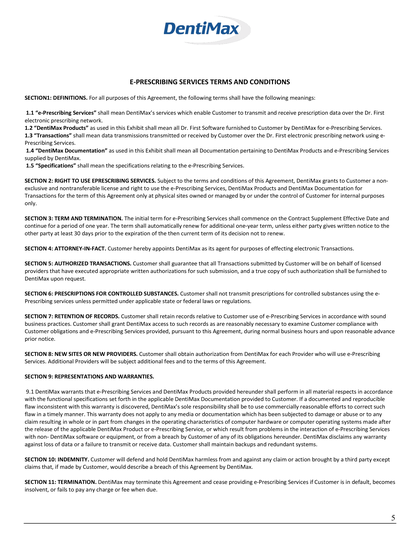
Page 5 — Terms and Conditions
Page 5 lists the Terms and Conditions for the e-prescribing service. Review this page before signing the agreement on Page 4.
Step 2 — Enrollment Form Completed
The provider (or authorized representative) completes and submits the enrollment form via Docusign.
Step 3 — Accounts Created and Token Requested
Using the completed enrollment form(s), the DentiMax implementations team creates the doctor and staff user accounts and submits a request for a token to be shipped to the client.
The token is a small physical device — about the size of a key-chain attachment — with only 1–3 buttons on it. It generates a one-time code used for identity verification during the EPCS enrollment process.
Once the token request has been submitted, your implementation specialist will send two emails to the doctor's personal email address:
- A link to the EPCS Invite
- A follow-up email with next steps and a PDF guide for completing the invite.
The DrFirst team then processes the token request and assigns EPCS (Electronic Prescribing of Controlled Substances) permissions to the practice. This allows the doctor to later enroll in EPCS Gold and become eligible to send controlled substance prescriptions.
Step 4 — Token Is Shipped
The token is shipped to the address specified on the enrollment form. Delivery typically takes a few business days.
Step 5 — EPCS Invite (Provider Action Required)
Once the token is delivered, the provider will have received the EPCS invite link sent in Step 3. The provider should now complete the EPCS invite using that link and their physical token.
⚠️WARNING
The EPCS invite must be completed by the provider. This is the first of a two-step identity verification process and cannot be delegated to anyone else. The doctor will need their physical token to complete this step.
Step 6 — LAC Appointment (Final Step)
Once the provider has completed the EPCS invite, your implementation specialist will coordinate with the office to schedule the LAC (Logical Access Control) appointment.
📒NOTE
There is one LAC appointment per provider. If multiple providers are enrolling together, each has their own separate LAC appointment — they are not combined into a single call.
The LAC appointment requires:
- The doctor and their Granting Administrator on the phone together with your DentiMax implementation specialist.
- Both the doctor and administrator having access to DentiMax on the same computer.
Once the LAC is completed, your implementation specialist will confirm it has been processed on DrFirst's end (typically a few seconds to a few minutes). The doctor will then be able to begin sending electronic prescriptions.
📒NOTE
If the office uses DentiMax "On-Prem" (a local installation of DentiMax), the LAC appointment will also include the installation of the EMR Link application. This uploads patient profiles from DentiMax to the DentiMax/DrFirst environment for easier prescription management.
Frequently Asked Questions
| Staff email is the same as the provider's personal email | The enrollment cannot proceed until a different staff email is provided. Please contact your implementation specialist at Implementations@DentiMax.com or 1 (800) 704-8494 Ext. 812 with the updated email address. |
| Provider has not completed the EPCS invite | The LAC appointment cannot be scheduled until the EPCS invite is complete. Please follow up with the enrolling provider to ensure they have received the invite email and have their token available. |
| Token has not arrived after one week | If the token has not arrived within a week of the enrollment form being completed, please contact your implementation specialist at Implementations@DentiMax.com or 1 (800) 704-8494 Ext. 812 and we will look into it on your behalf. |
| Need to change the Granting Administrator | Email Implementations@DentiMax.com with the new administrator's first name, last name, and DrFirst role (Provider, Clinical Staff, or Non-Clinical Staff). |
For questions about the enrollment process, contact your DentiMax implementation specialist at 1 (800) 704-8494 Ext. 812 or Implementations@DentiMax.com. To add electronic prescriptions to your monthly bundle, contact your Account Manager at 1 (800) 704-8494 Ext. 804 or PMSales@DentiMax.com.